
Search
You are able to connect Parcely with DPD via API and automate the following processes:
You can export both DPD pick-up point and home-delivery orders from the Parcely app to the DPD system.
Parcely offers the following DPD shipping methods:
Please reach out to DPD support to learn about the countries they ship to and shipping rates.
Important! Only merchants whose warehouse is located in Estonia, Latvia, Lithuania or Czechia can export orders to the DPD system.
Go to your store admin and open the Parcely app under “Apps”. Click on the Shipping Service tab and move to the DPD section. Here you can enable and disable order export
1. DPD Baltic API - DPD's newest API for the Baltic region. You can generate a token for this API in the DPD self-service portal. Please ask DPD support for guidance if you are unable to find it.
3. DPD Baltic Interconnector - Older DPD API in the Baltic region. It can still be used if you already have a contract with DPD and have interconnector keys.
4. DPD Czech Republic API - Please contact DPD Czechia support if you need help with finding API token in DPD self-service portal.
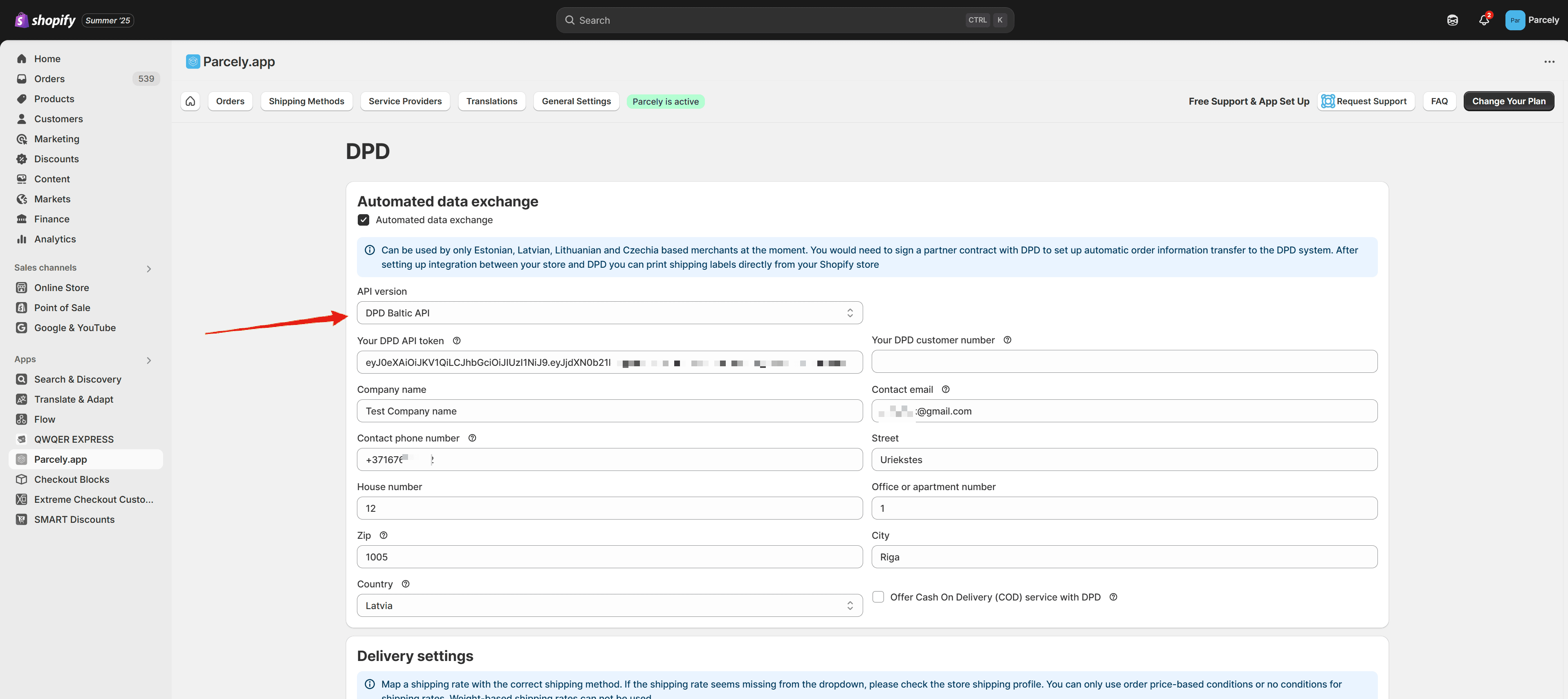
Please fill in all the fields. Only "house number" and "Office or apartment number" are not mandatory.
Please insert phone number with country code (e.g. “+372555555”, “+37065123456” )
Please insert zip without country code. For example, "1005" instead of "LV-1005.
After order exporting has been set up you can print all DPD pick-up point shipping labels from the Parcely app Orders view.
If for some reason the order is not automatically exported, then click on the "Export Order" button and the order data will be sent to DPD. In a few seconds, you will see that the label printing button will switch to green and you can print the label by clicking on it.
The tracking code is saved to your store order only if you fulfill orders through the Parcely app Orders view. Parcely will save the tracking code itself and DPD tracking URL to the order and also include it in your store order confirmation email. If you choose to fulfill orders in Shopify order management, you will need to manually copy and paste the tracking code and URL.
Parcely generated automatically COD shipping label if the following conditions are met:
You are able to offer COD with the following DPD shipping methods:
Make sure you enable the COD payment method in your Shopify store. You can do it in the admin panel under Settings→Payments→Manual payment methods→Add manual payment method→Cash on Delivery (COD)
Make sure you add instructions for customers to the "Additional details" field. You can find this field if you click on "Manage" on the Cash on Delivery (COD) payment method. We would advise adding a text there that lets customers know that COD payments can only be used if customers choose the previously mentioned DPD shipping methods.
Unfortunately, the Cash on Delivery (COD) payment method can not be hidden if the customer chooses the wrong shipping method.
is a COD shipment
If a customer chooses COD payment with a shipping method or location that is not supported by DPD, then the order will not be automatically sent to DPD, and you can manually edit the order and contact the customer to find the best solution for collecting the payment for the order.
Powered By SparrowDesk