
Search
You are able to connect Parcely with Foxpost via API and automate the following processes:
You can export both Foxpost pick-up point and home-delivery orders from the Parcely app to the Foxpost system.
Parcely offers the following Foxpost shipping methods:
Please reach out to Foxpost support to learn about the countries they ship to and shipping rates.
You can find the Foxpost username, password and API key from your Foxpost self-service portal (https://foxpost.hu/). If you are not able to find them, then please contact your Foxpost contact person or their support.
To activate Foxpost order exporting open Parcely app in your store and move to "Service Providers"→select "Foxpost"→check "Automated data exchange".
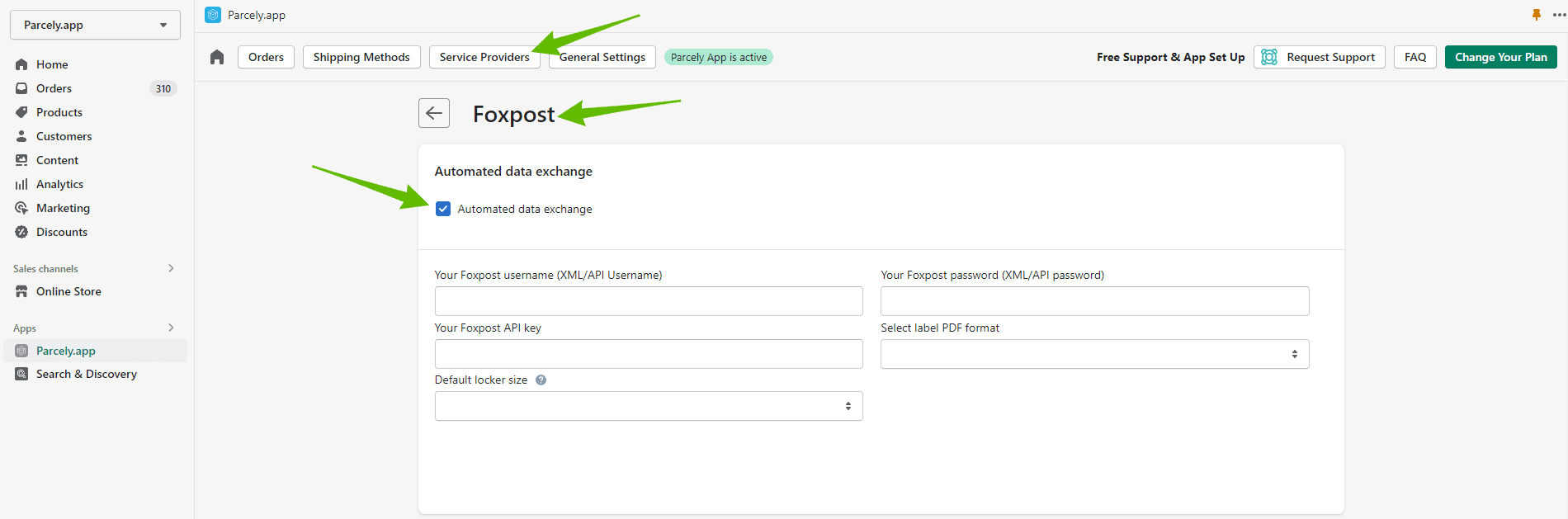
Foxpost has made a Locker size selection mandatory and it has to be selected before sending order data to the Foxpost system. We have added a Default locker size option to save time when managing the orders.
Important: You still have to approve every order locker size before it's sent to Foxpost and you change the locker size for every order if needed.
After order exporting has been set up you can print all Foxpost pick-up point shipping labels from the Parcely app Orders view. Firstly you will see a red error message that asks you to confirm or select a locker size for the order. If you have selected the default locker size, then it will be preselected for you.
If the locker size is correct, then click on the "Export Order" button and order data will be sent to Foxpost. In a few seconds, you will see that the label printing button will switch to green and you can print the label by clicking on it.
The tracking code is saved to your store order only if you are fulfilling orders through the Parcely app Orders view. Parcely will save the tracking code itself and Foxpost tracking URL to the order and also include it in your store order confirmation email. If you would choose to Fulfill orders in Shopify order management, then you would need to copy and paste the tracking code and URL manually.
Parcely will generate a COD shipping label automatically if the following conditions are met:
Make sure you have enabled the COD payment method in your Shopify store. If you haven't done it yet, then you can do it in your store admin panel under Settings→Payments→Manual payment methods→Add manual payment method→Cash on Delivery (COD).
You can add instructions for customers into the "Additional details" field to make sure the customer understands when the payment is made. You can find this field if you click "Manage" on the Cash on Delivery (COD) payment method.
Powered By SparrowDesk